
Seobility MCP: Connect your AI assistant to your Seobility data (Beta)
Work with your SEO data right inside your favourite AI assistant! Instead of using the Seobility application and pasting report data into your AI chat, you can simply connect Seobility directly to your AI assistant. From there, you can chat with your Seobility data in plain language and get answers and insights based on your projects, rankings, and Seobility's SEO tools and data.
This guide explains what the Seobility MCP does, what you can use it for, and how to set it up step by step.
What is the Seobility MCP?
MCP stands for Model Context Protocol. It's a standard way for AI assistants to securely connect to outside tools and data. In plain terms: it's the bridge that lets your AI assistant reach into your Seobility account and work with your data.
The Seobility MCP connects any MCP-compatible AI client (for example Claude Code, Claude, Cursor, or ChatGPT) to your Seobility account. Once it's set up, you stay in your AI assistant and describe what you want, and the assistant does the rest:
- You ask a question in everyday language.
- The assistant retrieves and analyzes your Seobility data for you.
- You get answers, summaries, and next steps without switching tools or exporting anything.
Everything stays tied to your own Seobility account, and your usage always stays within your plan's limits.
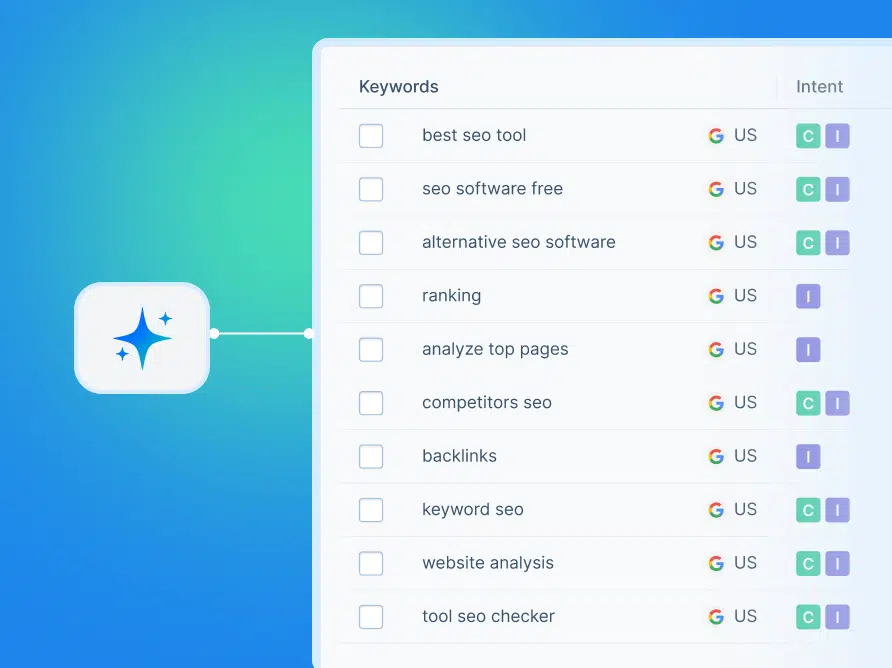
What can you do with it?
Once the Seobility MCP is connected, you can simply ask your assistant questions and let it work out the right steps on its own. A few examples:
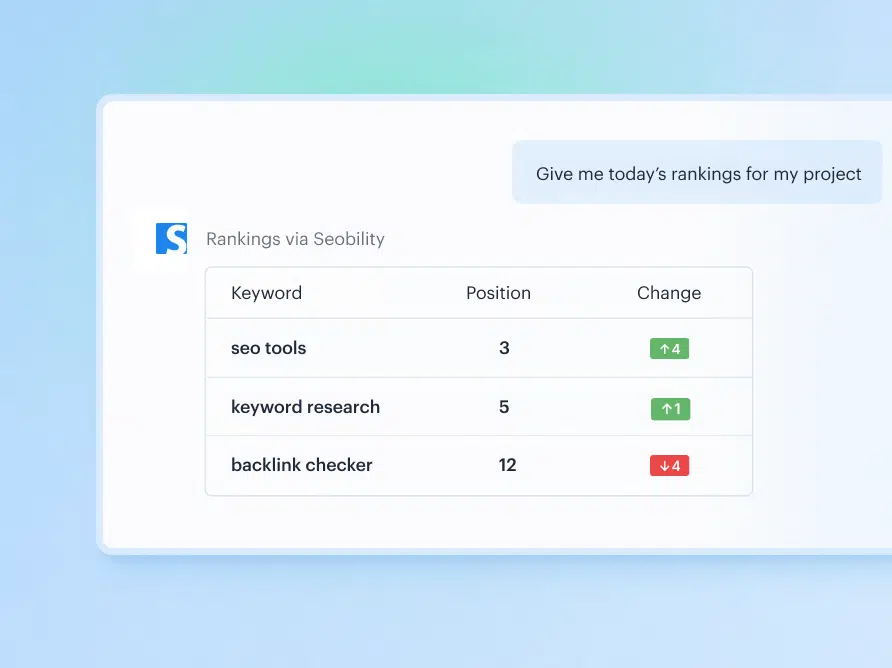
Check your rankings: Get your latest positions across Google and in AI Overviews from your Ranking Monitoring, no need to open a report.
"Where does my website rank for 'seo check' in Google Germany?"
"Give me today's rankings for my project [name]."
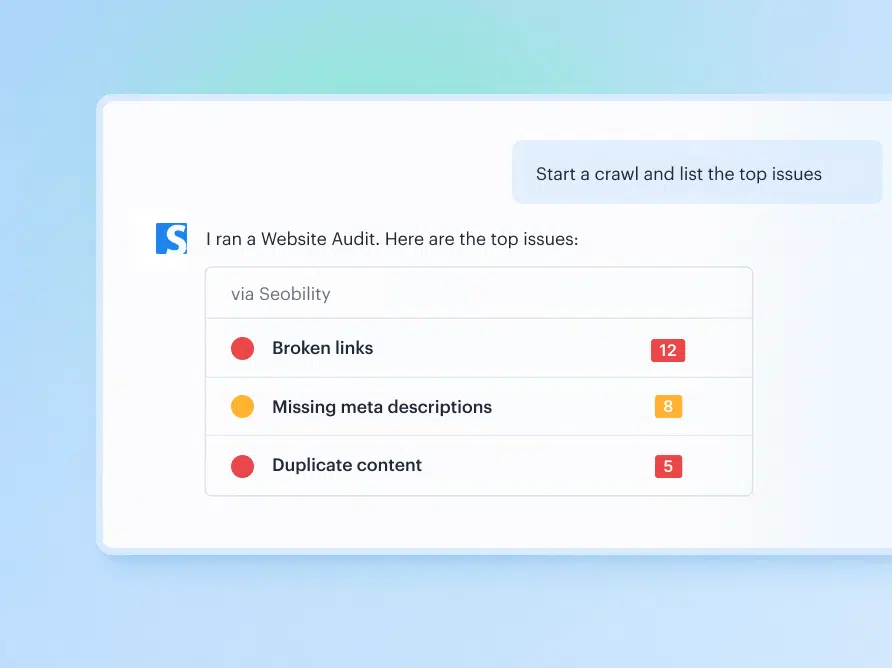
Run a Website Audit: Start a crawl and have the most important technical and on-page issues explained back to you, so you know what to fix first.
"Start a crawl for my project [name] and list the top issues."
"Which website audit optimization would benefit [URL] the most?"
Do a quick SEO check on any page: Run a fresh check on a single URL and get clear, plain-language feedback.
"Run an SEO check on this landing page: [URL]."
Keep an eye on your competitors: Track how your competitors are performing and get a heads-up when something meaningful changes.
"Tell me if [competitor] gained or lost visibility this week."
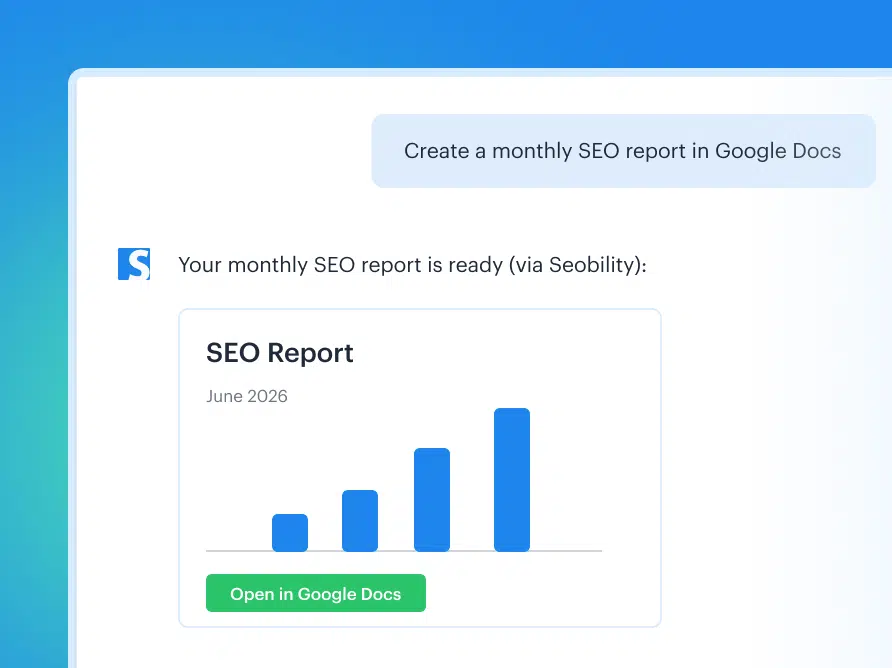
Automate your SEO reporting: Turn your data into reports in the tools you already use, like Google Docs or Notion.
"Create the monthly SEO report for my project [name]."
Ready to go further?
The real value shows when you let your assistant chain several steps together in a single request. For example:
Check for which keywords [URL] ranks in positions 4 to 20, identify content gaps against the top 3 ranking pages, and recommend what to do with the page content of the pages with the most potential.
Compare my rankings this month against last month and summarize the biggest movements for my project [name].
Find the pages with the most technical issues in my latest crawl and tell me what to fix first.
Your AI assistant can also add to your Seobility data, for example by adding keywords to a project. It can read your data and add to it, but it can't delete anything from your account.
💡 Good to know: The Seobility MCP helps you work with your SEO data faster, but it doesn't fix issues on its own, unless you set it up to do so. It gathers your data, explains it, and hands you clear next steps, but you stay in control of what happens next.
What you need to get started
- A paid Seobility plan. The Seobility MCP is currently available on the Premium, Professional and Agency plans. Your plan determines how many credits you have for data and live analysis.
- An MCP-compatible AI client, such as Claude Code, Claude, Cursor or ChatGPT.
A quick note on how you sign in: The Seobility MCP authenticates with your personal API key. There's no separate login or OAuth step yet. The key alone identifies your account and your plan, so keep it safe (more on that in Step 4).
How to set up the Seobility MCP
1. Get your Seobility API key
Open the Account Settings > MCP tab in Seobility and create your personal API key there. Copy it and keep it somewhere safe, you'll paste it into your AI client in the next step.
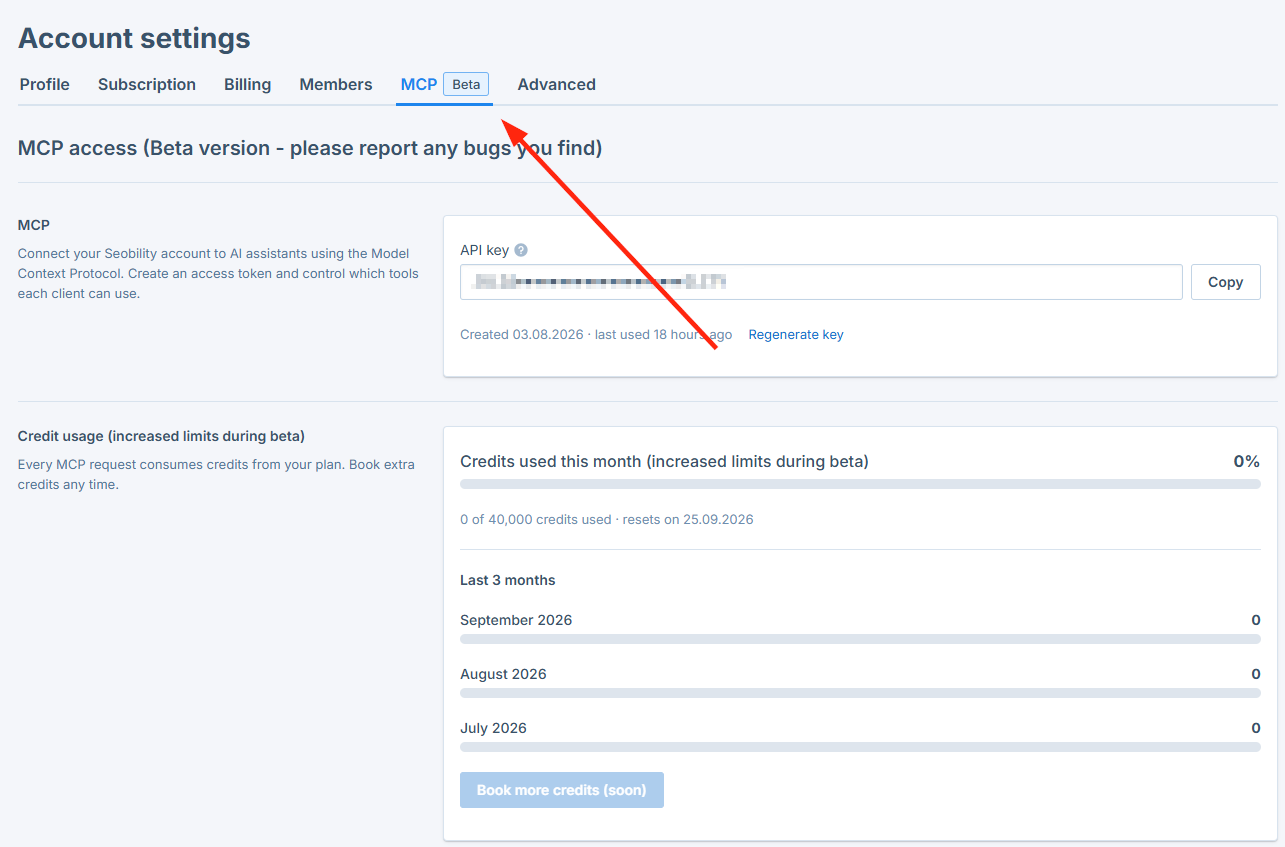
If you took part in the closed beta, the API key we emailed you back then still works, so you can reuse it or generate a fresh one in the MCP tab.
Having problems or need help? Contact our support team and we'll help you out.
2. Add the server to your AI client
Pick the option that matches your setup, and replace <your-api-key> with the key from Step 1.
Tip: You can also send your AI assistant this page and ask it to help you set up the MCP.
Seobility MCP for Claude Code, Codex, Cursor, etc. (CLI tools)
Option A - Config file:
Add the server to your client's MCP configuration file (for Claude Code, this is .mcp.json). Your key is sent as a request header:
{"mcpServers": {"seobility-mcp": {"url": "https://api.seobility.net/mcp","headers": {"X-Seobility-Authorization": "<your-api-key>"}}}}
Option B - Command line:
claude mcp add --transport http seobility-mcphttps://api.seobility.net/mcp\--header "X-Seobility-Authorization: <your-api-key>"
Seobility MCP for ChatGPT, Claude Chat, etc. (Chat tools)
Option C - Claude (web & desktop app)
- Settings → Connectors → Add connector → Add custom connector.
- Step 1 of the wizard: Name
Seobility, Remote MCP server URLhttps://api.seobility.net/mcp, Authentication None. Do not pick an OAuth option, because the Seobility MCP currently authenticates with an API key. Click Continue. - Step 2 of the wizard: leave the OAuth client settings untouched.
- Under Additional request headers, click Add header:
- Option not visible? This option a) must be permitted by your admin, and b) is currently rolling out as a beta so it may not be available to everyone yet. Solution: Use the Claude Code installation method above today.
- Header name: choose
authorizationfrom the dropdown. (Custom header names require Anthropic approval and will be rejected.) - Value:
Bearer YOUR_API_KEY. TheBearerprefix is required; the key on its own will not authenticate.
- Under Advanced → Transport, keep Streamable HTTP.
- Finish the wizard, then enable the connector per chat from the tools menu.
Option D - ChatGPT (developer mode required)
- Settings → Security and login → Developer mode → switch on.
- Plugins → Create app.
- Name
Seobility, MCP Server URLhttps://api.seobility.net/mcp, Authentication Access token / API key. - "Access token / API Key" option not visible? This option is currently rolling out and, as far as we know, is already available in Business and Enterprise accounts. Solution: Use the Codex installation method above today.
- Tick "I understand and want to continue" and click Create.
- A "Connect Seobility" dialog appears. Paste your API key (the raw key, with no
Bearerprefix) and click Connect.
3. Verify the connection
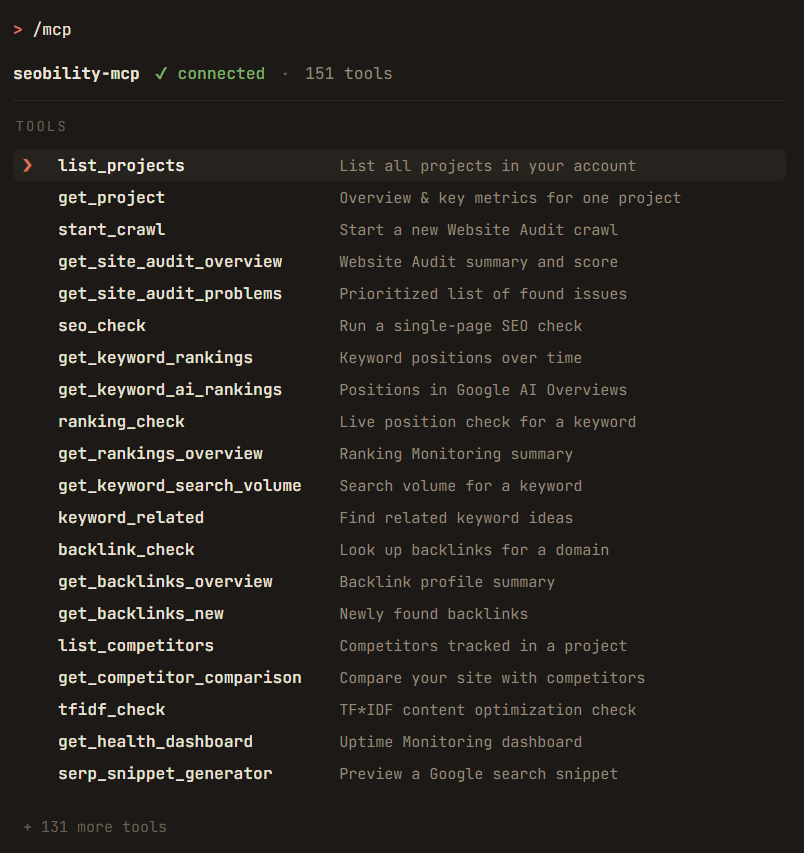
In an interactive Claude Code session, run /mcp. The seobility-mcp server should appear as connected and list its tools. In other clients, look for Seobility in your list of connected tools.
If it doesn't connect, check that your key was copied in full (no extra spaces), that you used the correct endpoint (https://api.seobility.net/mcp), and that your Seobility plan includes API access.
4. Keep your API key secure
Your key works like a password. Don't paste it into shared chats, tickets, or screenshots, and don't commit it to a public code repository. If it's ever exposed, contact support so we can reset it.
How credits work
The Seobility MCP runs on credits that are included with your plan. Every time your assistant works with your data, it uses some of that allowance.
During the beta, you get higher credit limits so you can explore the MCP and try out workflows without running low too quickly:
- Premium: 40,000 credits per month
- Professional: 100,000 credits per month
- Agency: 200,000 credits per month
Credits keep the MCP fair: they're there so no single account can overload our live tools. The beta limits are generous on purpose, so you have plenty of room to experiment. f you run into your limit during the beta, let us know.
To get the most out of your credits, ask focused questions, so your assistant only makes the requests it actually needs.
Further down the line, extra MCP credits will also be available as an add-on, on top of your plan's monthly allowance.
More resources
Need more help?
- 📩 Reach our support team anytime at [email protected].
- 💬 Share your feedback! As a beta user, your input directly helps us to improve the Seobility MCP.
Thanks for experimenting with the MCP. 💙